AI Table Assistant
The AI Table Assistant uses natural language conversation, document parsing, and tag identification capabilities to help users plan, confirm, and create database table structures. Whether it's creating a time-series history database for storing massive amounts of real-time data, or a relational data table for business process archiving, the AI first understands the requirements, matches relevant tags, generates a table creation plan, and then guides the user through conversation and cards for confirmation before execution. This reduces the cost of manually configuring fields, formulas, trigger rules, and underlying database parameters.
Feature Description
- Natural Language and Attachment Parsing: Supports describing table creation requirements directly via natural language, or uploading attachments (e.g.,
.csv,.txt) containing table structures, archiving rules, statistical definitions, etc. The AI extracts key information from text or attachments. - Tag Identification and Field Generation: The AI first reads tag information from the project tag tree and matches relevant tags based on user descriptions. Except for scenarios like basic data tables that do not depend on tags, the AI establishes mappings between fields, formulas, aggregation items, archiving objects, and tags.
- Solution Generation Based on Business Scenarios: The AI assistant supports table creation requirements in both the history database and data management modules:
- History Database Archiving Configuration: For time-series tags collected continuously, it helps users idenify archivable tags, automatically groups them by tag type and user requirements, recommends archiving strategies and parameters, and generates history group plans.
- Data Management Table Creation: For business archiving, data aggregation, and basic data maintenance, it helps users determine the table type and generates configuration plans for fields, trigger rules, formulas, relationships, etc.
- Conversational Confirmation and Completion: During parsing, if the AI finds incomplete requirements, unclear tag scope, missing archiving strategies, undefined field types, unclear relationships, etc., it continues to ask questions via conversation or cards to guide the user in providing missing information.
- Plan Confirmation and Safe Execution: Before formally writing to the database, the AI generates a complete table creation or archiving plan for user review. Users can provide further modification suggestions and confirm before execution, ensuring that the underlying data structure is safe and controllable.
Core Advantages
The value of the AI Table Assistant is not to bypass user confirmation, but to break down the complex table configuration process into understandable and verifiable conversational steps:
- Reduce Archiving Configuration Costs: Converge the repetitive work of manually finding tags, determining grouping, selecting archiving strategies, and batch-binding tags into a confirmable plan generation process, reducing configuration time and minimizing the risk of beginners mis-selecting "timed recording", "change recording", or filling in incorrect deadbands and collection intervals.
- Lower the Barrier to Table Creation: Users don't need to first understand the differences between tag archive tables, data aggregation tables, basic data tables, etc., nor manually configure field formulas like
PREVALUEorCHANGEor aggregation methods. The AI determines the required table structure and configuration items based on the requirements. - Reduce Tag Matching Costs: The AI combines information from the project tag tree to identify relevant tags, preventing users from having to search and bind tags one by one across many devices, production lines, and tags.
- Reduce Configuration Errors: For error-prone relationships such as data source, field formulas, trigger rules, and history archive strategies for the data aggregation table, the AI first generates a structured plan for user confirmation.
- Support Iterative Modifications: If the plan does not meet expectations, users can continue to adjust tag scope, fields, formulas, archiving strategies, or trigger conditions through conversation. The AI regenerates the confirmation result based on the original plan.
Typical Scenarios
Scenario 1: Batch Archiving to History Database via Natural Language
Background: You need to archive real-time tags such as temperature, pressure, and speed from production line 2 into the history database for subsequent trend curves. Manual configuration requires creating a history group first, then finding and binding tags one by one from the tag tree, and also deciding which tags should share the same archiving strategy. AI Approach:
- Open the AI assistant in the History Database module and enter: "Archive all temperature tags on production line 2 using change recording."
- The AI matches temperature tags related to production line 2 from the project tag tree and automatically groups them by tag type and user requirements.
- The AI recommends archiving strategies and parameters for each history group, such as change recording, deadband, collection interval, etc.
- If tag scope or parameters are unclear, the AI continues to ask via cards or conversation.
- After the engineer confirms the archiving plan, the system creates the history groups and binds the tags in batches. Value: Lowers the barrier to history database configuration, reducing repetitive work of searching for tags one by one, manual grouping, and manual archiving strategy setup.
Scenario 2: Creating a Shift Energy Consumption Statistics Table via Natural Language
Background: Energy management personnel want to count electricity, water, and compressed air consumption for production line 2 by shift for subsequent energy analysis and reporting. AI Approach:
- Open the AI assistant in the Data Management module and directly enter: "Create a shift energy consumption statistics table for production line 2, recording electricity, water, and compressed air consumption for the morning shift, afternoon shift, and night shift."
- The AI understands the business intent, determines that a data aggregation table is appropriate, and matches tags related to electricity meters, water meters, and air consumption for production line 2 from the project tag tree.
- The AI generates a table creation plan including statistical fields, tag sources, shift time ranges, aggregation methods, and trigger rules.
- The engineer reviews the plan card; adjustments can be made through further conversation if needed. After confirmation, click execute. Value: No need to manually search for tags, configure aggregation fields, and shift trigger rules. The design and creation of the energy consumption statistics table can be completed through conversation.
5-Minute Quick Start
Step 1: Choose the Entry Point and Enter Requirements
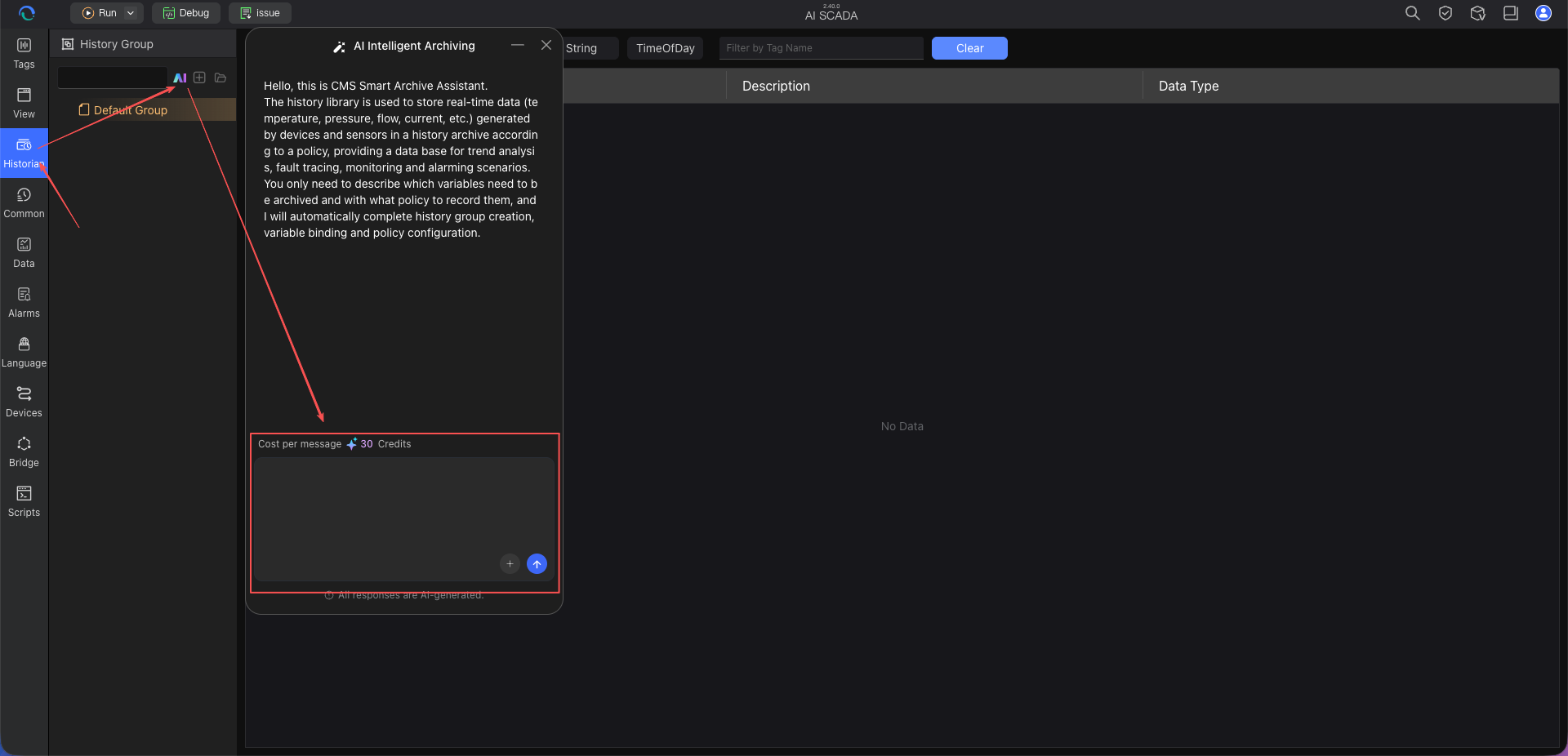
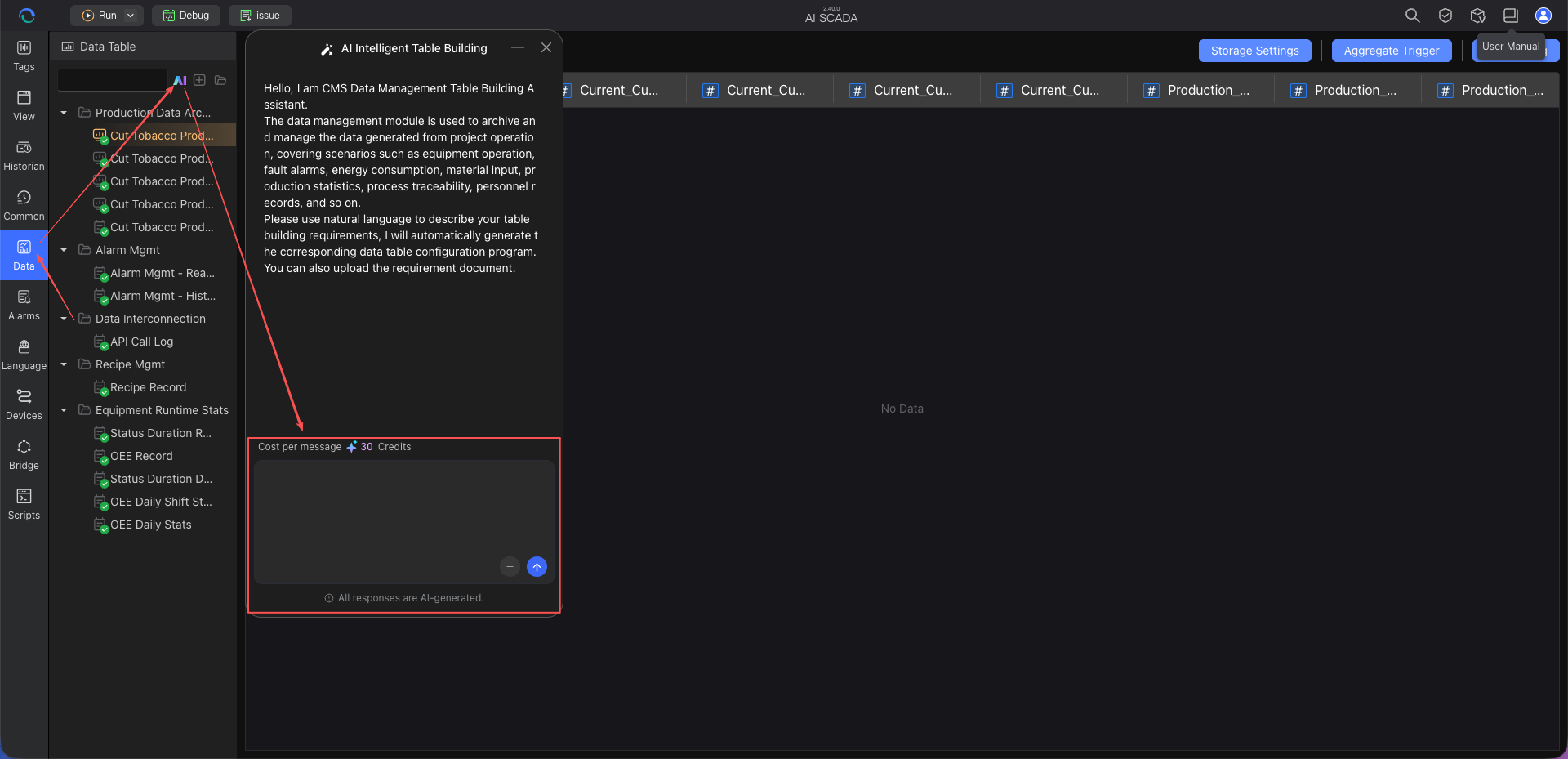
Depending on your data type (time-series data -> History Database, business archive data -> Data Management), go to the corresponding module and open the AI assistant dialog.
You can directly enter a text description of your table creation requirements, or upload an attachment (.csv, .txt) containing a field list or archiving rules to the AI.
History Database Tag Assistant Entry:
Data Management Tag Assistant Entry:
Step 2: AI Understands Requirements and Matches Tags
After receiving the message, the AI automatically parses the business intent, table name, field information, trigger conditions, archiving strategies, etc., from the file or text, and reads the project tag tree to match potentially relevant tags. If any required items are missing (e.g., unclear tag scope, unspecified data type, missing primary key, incomplete archiving parameters, unclear relationships, etc.), the AI sends a supplementary information card in the conversation stream or continues to ask questions.
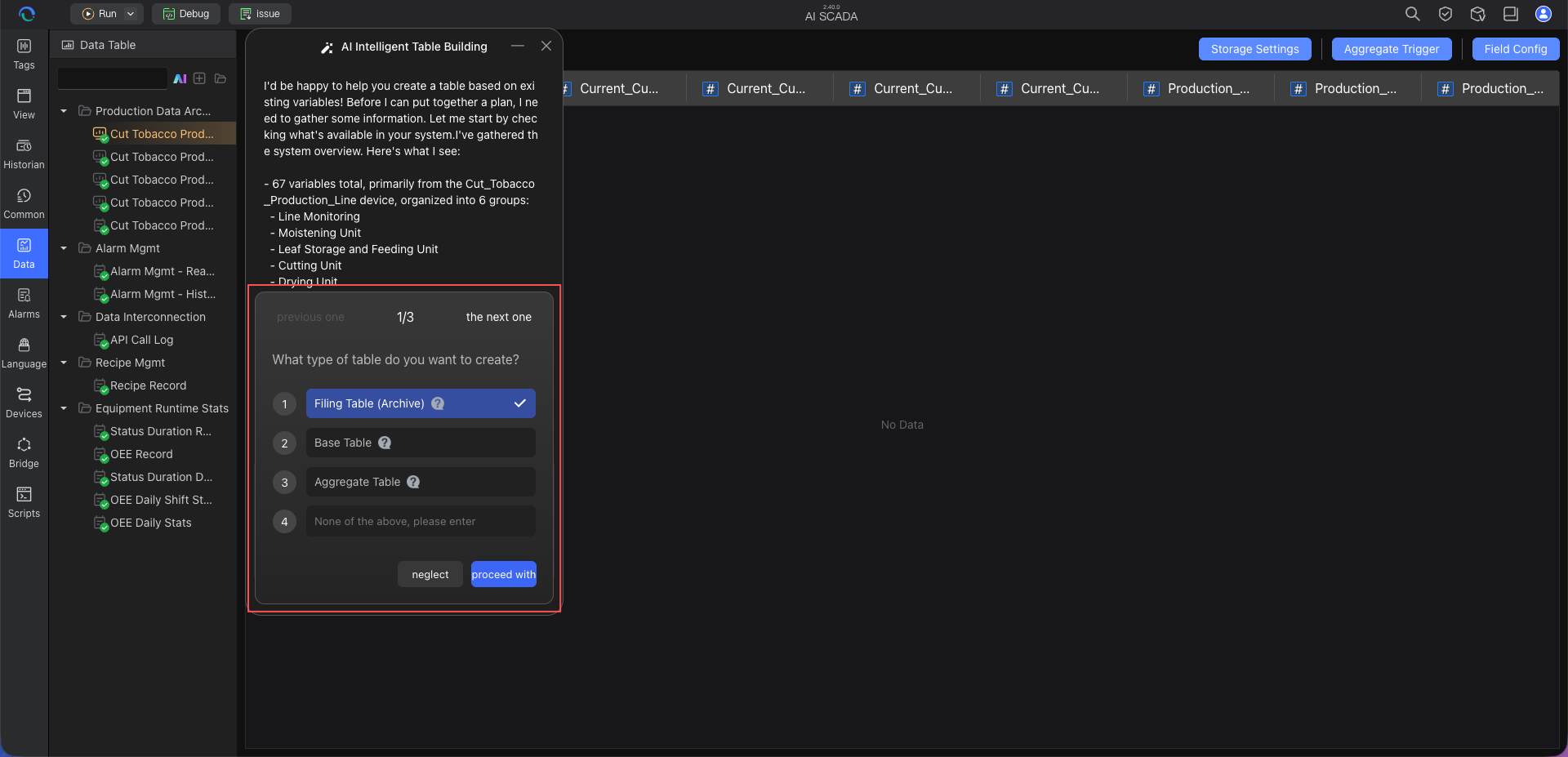
Step 3: Fill in Missing Information and Submit
Simply supplement the information according to the card prompts (e.g., confirm field types, set collection interval or deadband, supplement trigger conditions, confirm data source tables, etc.), then click submit.
Step 4: Confirm the Table Creation Plan
After all information is complete, the AI generates a clear confirmation plan, showing the table name, field list, tag sources, field types, trigger rules, formulas, relationships, or archiving strategies to be created. You can check whether the plan meets your expectations, or continue to ask the AI to make adjustments through conversation.
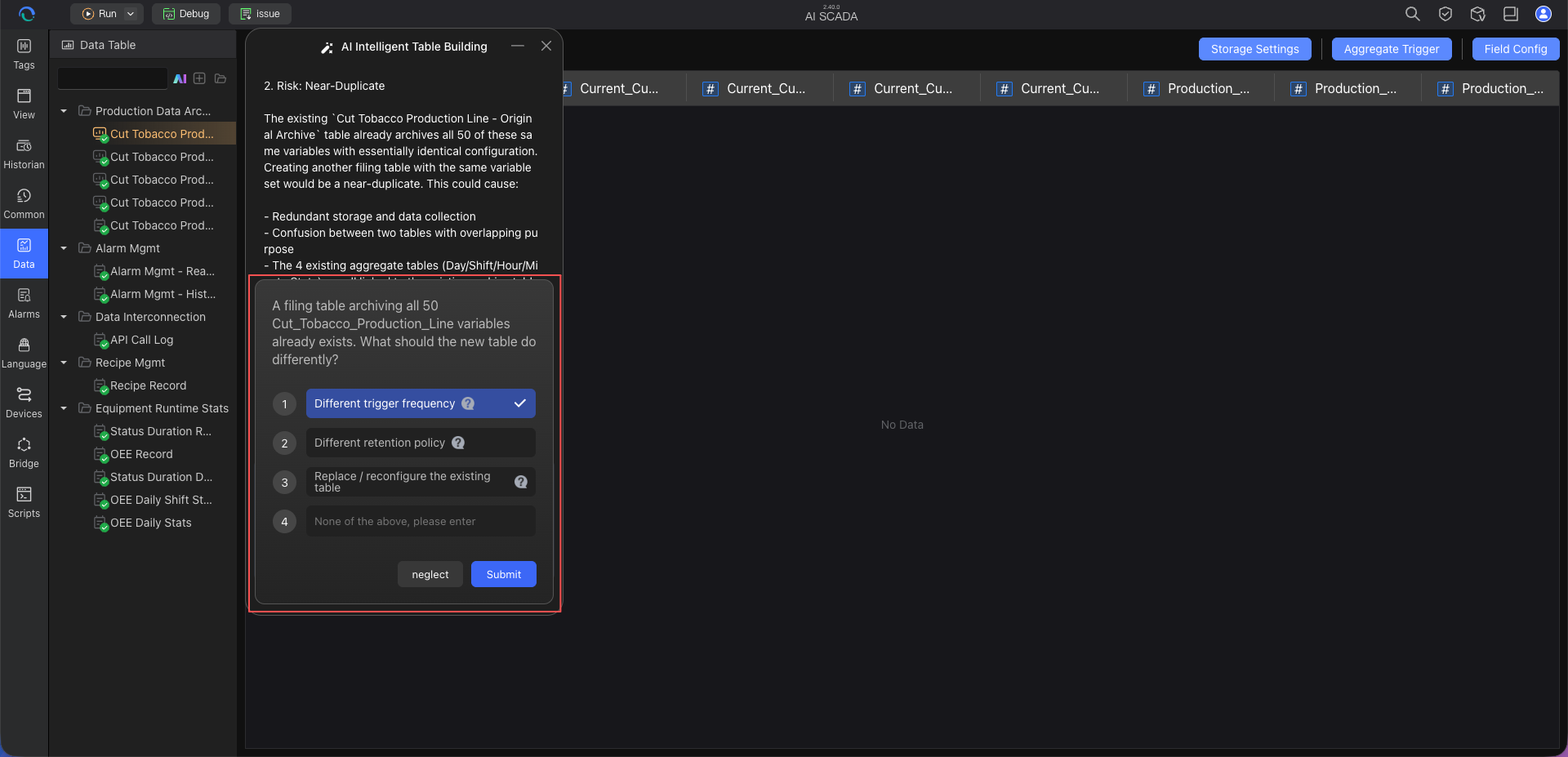
Step 5: Execute the Write and View Results
Click "Confirm and Execute" on the plan card. The AI automatically performs the database table creation operation in the background. After completion, you can view the successfully created table in the data table list of the current module.
Tips for Querying and Operation
Tip 1: Specify Data Types Clearly to Reduce AI Follow-ups
If you want to minimize the AI's follow-up questions, you can specify the type of each field, tag scope, trigger conditions, or archiving strategy in your first message or attachment. For example: "Create an order table with fields: order number (String), amount (Float), creation time (DateTime)." The AI will prioritize generating a confirmation plan based on this information.
Tip 2: Iterative Modifications via Conversation
If you find missing fields during the plan confirmation phase, there is no need to re-upload the attachment. Simply tell the AI: "Add an 'operator' field of type text." The AI will automatically append the field to the original plan and ask for confirmation again.
Frequently Asked Questions
Q1: What file formats are currently supported for upload?
A: Currently, standard text-based tabular files such as .csv and .txt are supported. If your field plan is in Excel (.xlsx), it is recommended to save it as CSV format first before uploading.
Q2: What is the difference between table creation in History Database and Data Management?
A: The interaction flow for both is similar: understanding requirements, matching tags, generating a plan, and executing after user confirmation. The difference lies in the configuration focus: History Database is mainly used for time-series data archiving, focusing more on tag scope, history group assignment, collection intervals, deadbands, timed recording or change recording parameters, etc. Data Management is mainly used for business data tables or aggregation tables, focusing more on table type, fields, trigger rules, formulas, data sources, and relationships. You don't need to handle the underlying differences manually; just confirm based on the card prompts.
Q3: Can tables created by the AI be modified?
A: Yes. Once the AI creates a table, it is no different from a manually created table in the system. You can still use the system's graphical interface to add, delete, or modify the table structure.
Best Practices
1. Upload Document to Express Complex Requirements
For a small table with only 3-5 fields, describing it in one sentence is fastest. However, if there are more than ten fields, it is recommended to first list the field names and data types in Excel, export as a CSV, and upload it to the AI. This yields the highest accuracy and makes it easier for you to review.
2. Use in Conjunction with the Tag Assistant
When building a monitoring system, the typical workflow is: first use the AI Tag Assistant to import device point tables into the system, forming a recognizable project tag tree. Then use the AI Table Assistant to match these tags and generate table creation plans for the history database or data management, thus closing the loop of "collecting, storing, and using" data.
Next Steps
- AI Smart Binding – After completing table creation and archiving configuration, learn next how to quickly bind page components to tags, making pages display real data.
- API Integration Assistant – When business tables need to receive data from MES, ERP or cloud platform interfaces, learn about API interconnection configuration and response mapping.
- AI Script Assistant – When business tables, statistical tables, or archived data require further processing, continue learning about script development and system integration.
- 3D Model Assistant – After the page data pipeline is established, continue learning about 3D equipment model generation to enhance page display.